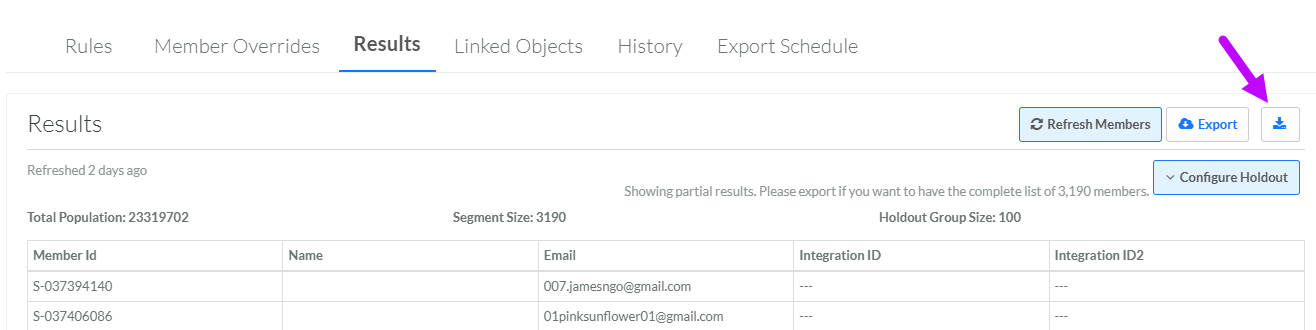
When manually exporting a Segment, the platform does not allow you to define what columns are included within the export file. The export file generated by this feature will contain the following columns:
-
member_id: Internal ID assigned by the Loyalty platform.
-
first_name: The Member's first name.
-
last_name: The Member's last name.
-
email: The Member's email address.
-
integration_id: A client-supplied Member identifier.
-
is_holdout (only if Holdout Groups have been enabled for this Segment): A True / False flag indicating if this Member has been assigned to the Holdout Group.
Likewise, when manually exporting a Segment, the platform does not allow you to apply any filters or other logical conditions to limit the Members that are included within the export file. However, if you have enabled and defined a Holdout Group for this Segment, you can optionally download only the Members included in the Holdout Group.
Before manually exporting a Segment, the following prerequisites must be completed:
-
Define the Segment Rules.
-
Publish the Segment (see
-
Deploy the Segment metadata (see
To manually export the Members selected by a Segment:
-
Select Members from the top navigation bar, then select Segments from the side navigation menu. The Segments screen is displayed.
-
Search for and select the desired Segment (see
-
Select the Results tab.
-
The best practice recommendation is to refresh the Segment before exporting, to ensure that you are exporting the most current list of Members. If necessary, click Refresh Members to refresh the Segment.
-
Click Export and select an export option:
-
Segment: Download all Members in the Segment (including those in the Holdout Group, if enabled) to your local PC.
-
Holdout Group: Download only the Members in the Holdout Group to your local PC. This option is displayed only if you have enabled and configured a Holdout Group for this Segment. The Holdout Group export file name is the same as the full Segment file name, with _holdout appended. See
-
-
The system builds the export file. When the export file is ready, a download button is displayed. Click this button to execute the export option selected above.